Account foundations
Keep each institute’s students in the right place
An organization is the home for one institute’s assistant, conversations, and team. Switching carefully protects a student’s details from landing in the wrong workspace. A new organization does not start your trial over.
- Where to go
- Organization selector → Organizations
- Who can do this
- Signed-in organization members
What an organization owns
Think of an organization as the institute’s own room. The bot, its sources, files, conversations, leads, teammates, and subscription all stay in that room.
Your login is you. Your role — Owner, Admin, Counsellor, or Viewer — belongs to one organization at a time, so the same person can help one institute and only read another. Every bot here is an admissions assistant. The point is guidance, not a general-purpose chatbot.
- The plan’s capacity is shared by the whole organization. It is not a private allowance for each bot, teammate, or website.
- Another bot still uses the same allowance. Split bots only when a campus, a family of programmes, or an audience truly needs its own knowledge.
- A student chatting on the website is not a team member. Their conversation does not take a seat.
Select the correct organization
- 1
Open the selector
Select the organization name at the top-left. This is the fastest way to be sure you are in the right institute.
- 2
Choose your workspace
Pick the organization and read the name and role that appear. If the role looks wrong, stop before you change anything a student might rely on.
- 3
Check before editing
If an older tab still shows the previous workspace, reload it. Confirm the bot you meant is the one on screen.
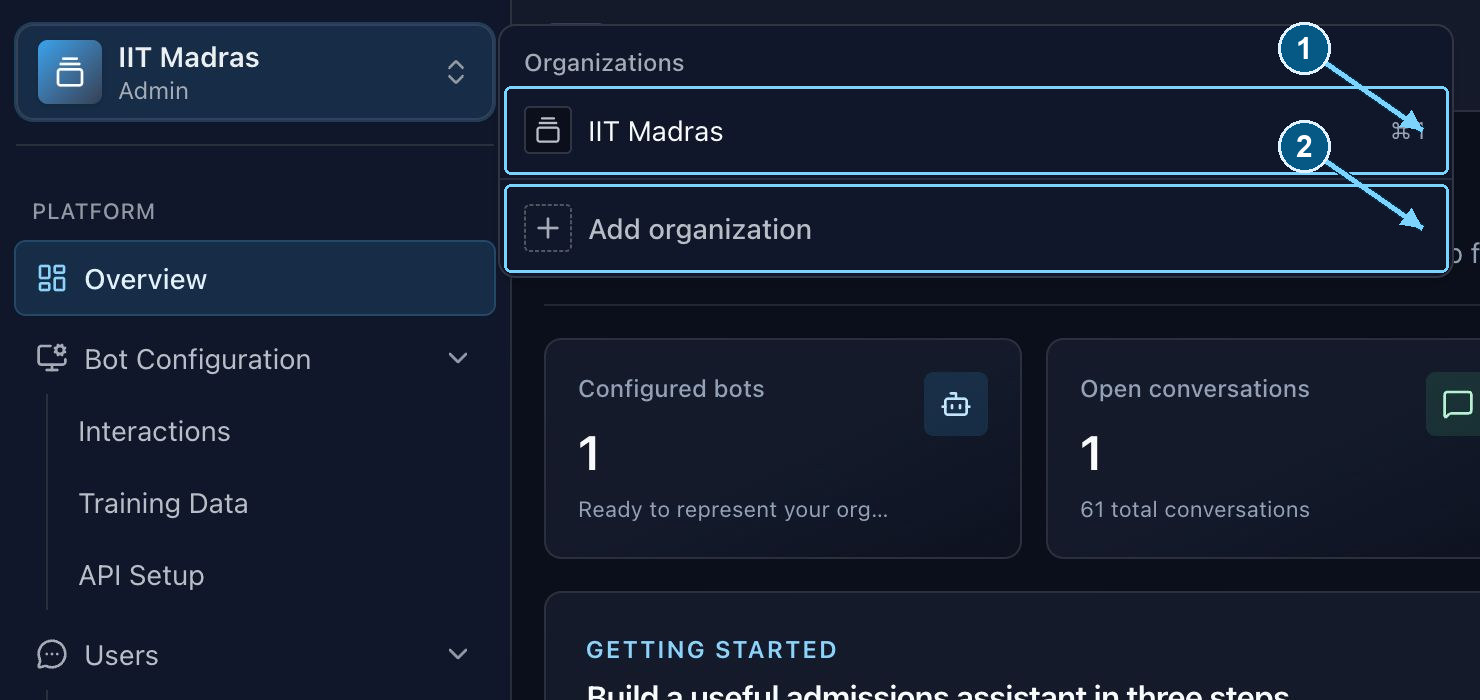
Open the organization name to see your workspaces. Admin is the membership role.
Enlarge- Choose a workspace
- Create another workspace
Create a workspace or join a team
If your institute already has a workspace, ask for an invitation. A second organization splits the students and the knowledge, and it does not help anyone. During first setup, enter the organization’s name and contact details. The person who creates it becomes an admin. To add another workspace later, open the organization selector, choose Add organization, and check that your plan still has room.
Sign in with the email that was invited. The link from Organization members works once and expires after 15 minutes. Invitations still waiting on the onboarding screen stay available for 14 days.
Trial eligibility follows the account
An eligible administrator can claim one 14-day trial. Creating another organization with the same account does not start that trial again. A new workspace may need a paid plan before you can create or train a bot. We keep the trial to one claim so the product stays fair, not so that a workaround becomes the plan.
The trial’s member allowance includes the person who created the workspace. If there is no seat left, upgrade before you invite a teammate. A pending invite still reserves a place for someone who has not joined yet.