Support workspace
Pick up a conversation without making them start over
A chat is a student’s attempt to be understood. This workspace keeps the thread, the summary, and the files together so the next person can continue with context, and can still check the words that were actually said.
- Where to go
- Users → Conversations
- Who can do this
- Organization members
Find the right conversation
Conversations groups chats into a lead inbox. One person can have several chats, so the number of cards and the number of conversations will not always match. A card shows one selected chat. It may not be the only one.
Open, All, Closed, and Archived narrow the list. Search when you know a name or a detail. Open Lead overview & chat history when you need every chat for that person, not just the one on the card.
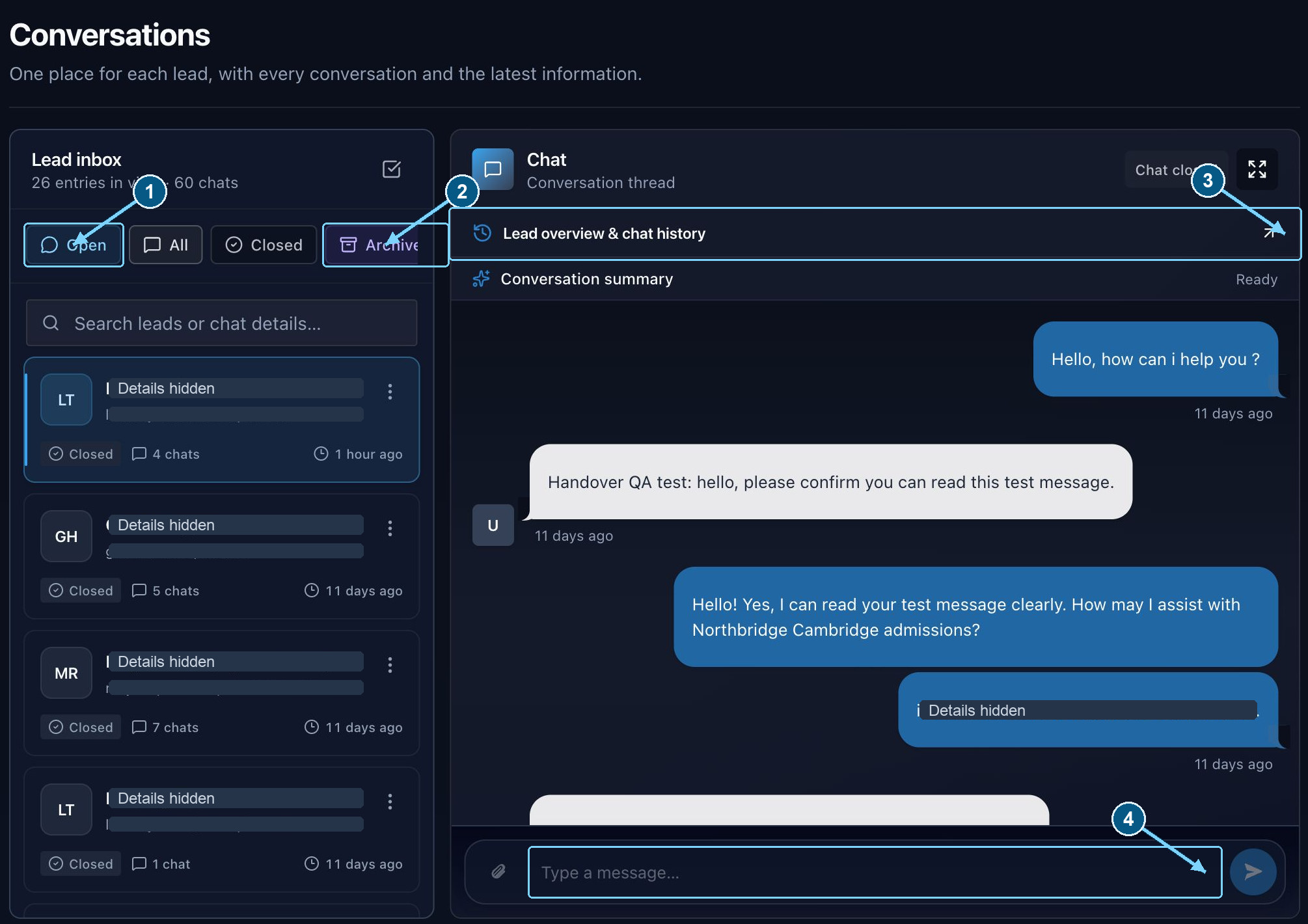
Closed chats have a disabled composer. Open an active thread to reply.
Enlarge- Filter to live conversations
- Find archived history
- See every chat for the lead
- Closed threads cannot accept replies
Separate chat history from the consolidated lead
Lead overview & chat history brings together the current details, a summary across chats, and each conversation, newest first. Open chat shows the full transcript of that one conversation.
A conversation summary describes one chat. The lead summary combines what was said across chats and refreshes after a chat closes. Neither replaces the transcript when a fact, a consent, or a promise matters. Read the words the student used.
Summaries are written in the background after a chat closes. If one is missing, the transcript is still there. Refresh saved information reloads what was stored. It does not invent the parts that were never written down.
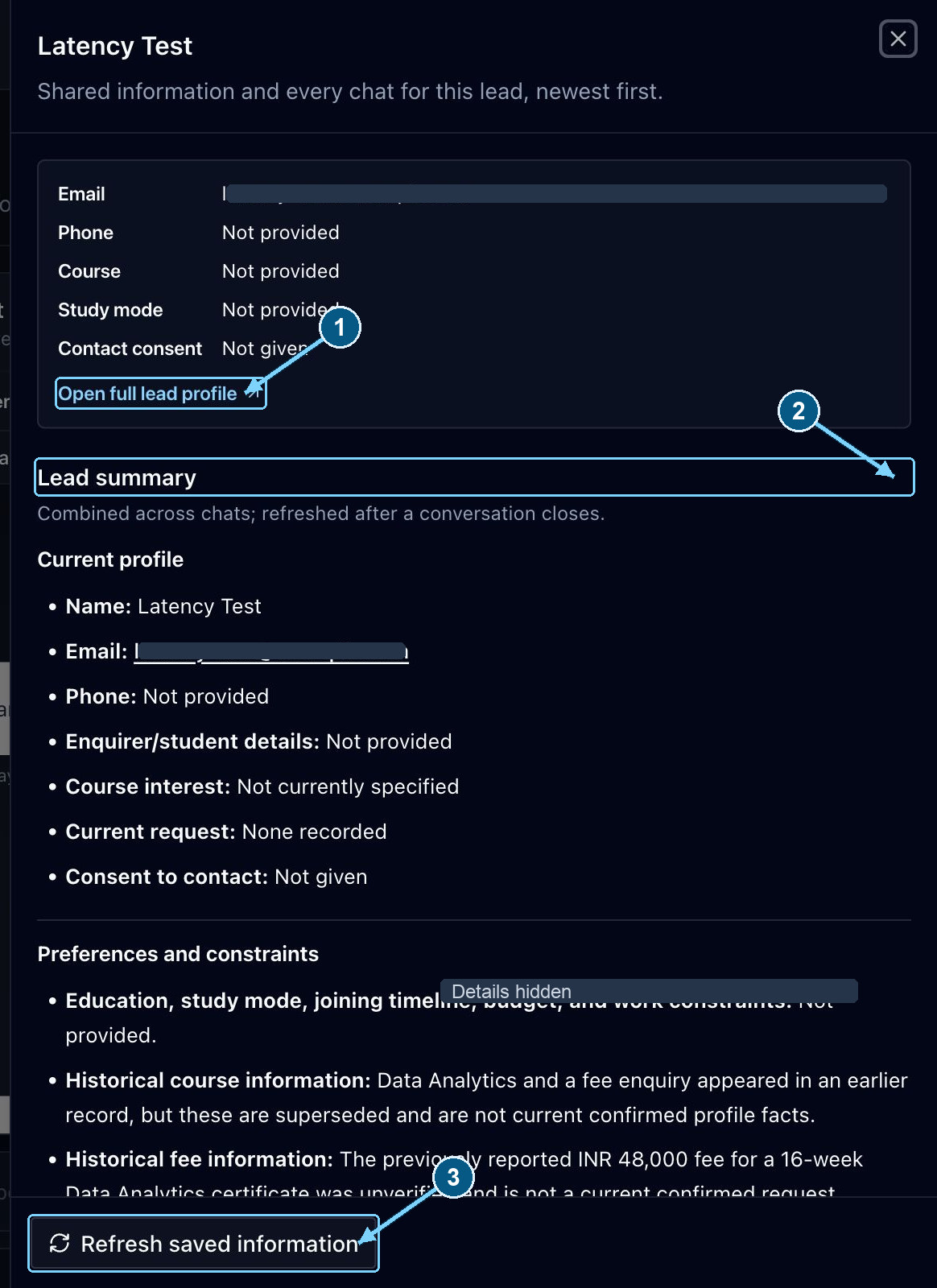
Check the specific chat when a summary and the latest visitor message appear to disagree.
Enlarge- Open the full lead record
- Consolidated summary across chats
- Reload saved profile and history
Join and respond as a person
- 1
Read the thread first
See what they asked, what the assistant already said, and whether they agreed to be contacted. Joining without reading makes them repeat themselves.
- 2
Check the conversation is open
Closed and archived chats are history. An open thread offers Join conversation. A closed one does not, and that is expected.
- 3
Choose Join conversation
Wait until you are joined and connected before you type. Opening the transcript, or reading the notification, is not joining.
- 4
Respond through the composer
Check that your message appears in the thread. If it still says Connecting, or the connection fails, do not assume they received it.
- 5
Close when complete
Use Close conversation when the help is finished. If they ask to end a human chat, that request is for you to resolve. It does not close itself.
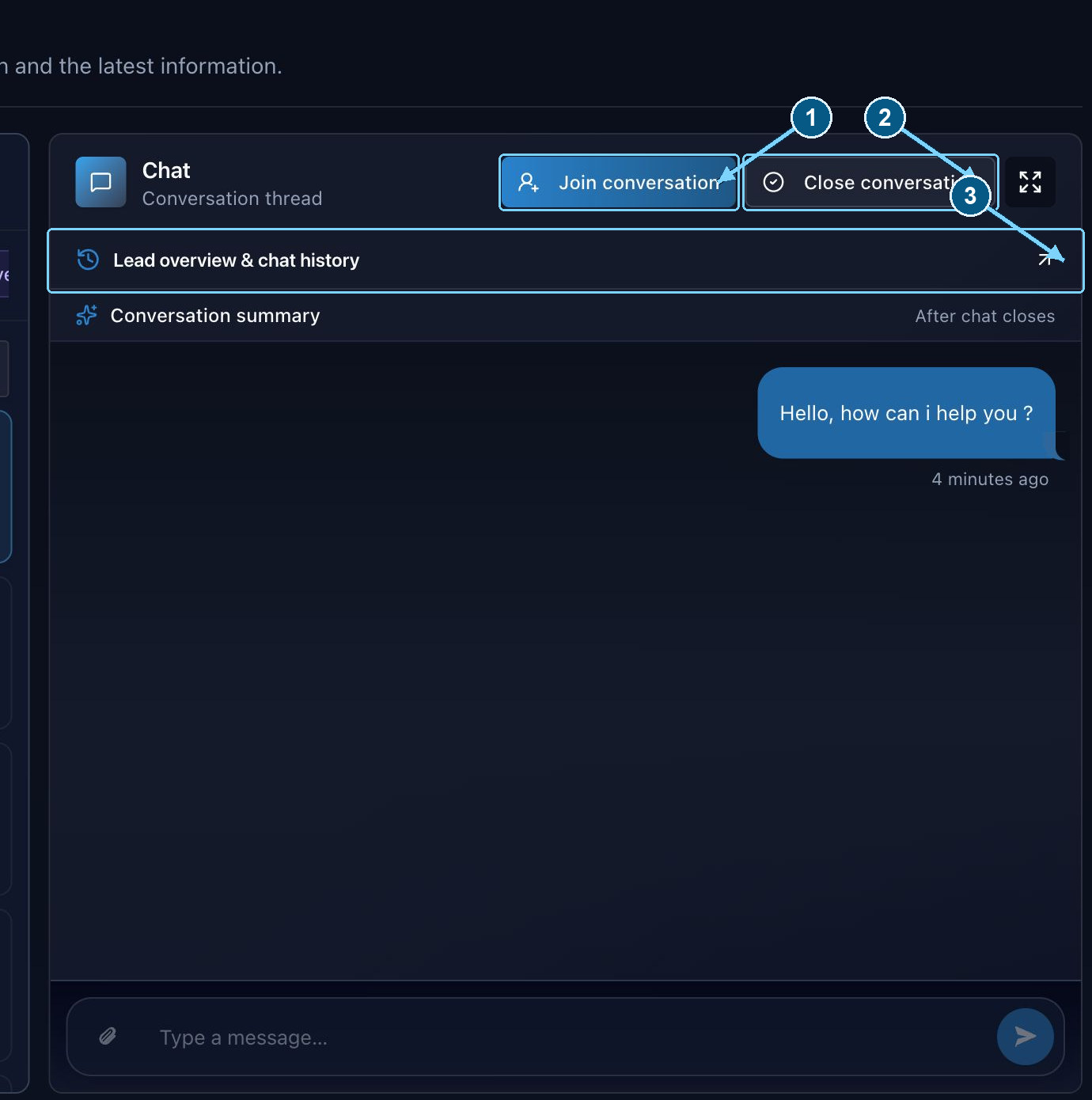
These controls appear on an open thread. Staff must join before replying.
Enlarge- Join before replying as staff
- End the open conversation
- Review the lead and chat history
Review visitor attachments
The paperclip accepts the supported documents and images under 5 MB. The dashboard shows an image preview or a file link, depending on the type. The file stays with that conversation and uses the shared storage.
An attachment is for a person to review. It is not an approved training source, and it is not a brochure the bot may hand out. Read it before you advise from it. Someone trusted you with that file.
If the name is already used in that conversation, the upload asks for a different one. If a file is missing or expired, ask for a new copy through your normal support process. Do not treat a broken preview as the whole record.
Closed, archived, and inactive conversations
A closed chat stops taking ordinary messages in that thread. The ended label says whether the visitor, a staff member, or the system closed it, when that is known. A send box that will not type is expected on a closed chat.
Archiving is how you tidy history. It is not deleting the transcript, and it does not change how long records are kept. Check the status filters and the chat history before you decide something is gone.
A scheduled task closes open conversations after about 15 minutes without messages. It checks on a cycle, and it leaves alone a handoff that is currently requested. The moment you see it close depends on that schedule. Students are not shown a countdown.