Training data
Teach it only what you would stand behind
The assistant should answer from material your institute approves. This page is how you add that material, wait until it is actually ready, and retire a fact when it is no longer true.
- Where to go
- Bot Configuration → Training Data → select a bot
- Who can do this
- Organization members; active plan and available capacity required
Supported formats and upload limits
| Source | What to provide |
|---|---|
| PDF (.pdf) | Text-based PDFs with readable headings and tables. The current converter does not read pictures of text. If a scan is only an image, turn it into real text first. A student cannot use an answer the bot could not read. |
| Word (.docx) | Modern Word documents. Legacy .doc is not supported; export it to .docx or a readable PDF. |
| CSV (.csv) | UTF-8 CSV with a non-empty, unique header for each column and consistent rows. Export .xlsx files to CSV first. |
| Plain text (.txt) | Readable UTF-8 text with headings and a clear topic for each section. |
| Markdown (.md, .markdown) | UTF-8 text with useful headings, lists, and descriptive links. |
| HTML (.html, .htm) | Saved HTML containing substantive content. File upload is supported separately from the Website URL control. |
| Website URL | One public page per source. Adding the homepage does not teach the whole website. Choose the pages a student would need, on purpose. |
Add sources and start training
- 1
Select the bot
Open its card in Training Data. Knowledge is taught to this bot. It does not quietly spread to every bot in the institute.
- 2
Add public pages
Paste a full https:// address and use the plus button beside it. Skip login pages and PDF links. Upload a document as a file so the bot can actually read it.
- 3
Upload files
Use the upload area and wait until the filenames appear under Training resources. Seeing the name means the file arrived. It does not mean the bot can answer from it yet.
- 4
Review submission terms
Read the terms and privacy policy. Starting training means you confirm you have permission to use the material. That check is there to protect the people whose information might be inside it.
- 5
Choose Train Bot
Start the batch once. If another job is queued or running, a second request for this bot will wait. Repeating the click does not make it more careful.
- 6
Check every result
Wait for Trained on each source you need. A progress bar at 100% can still hide failures. Read Success and Failed, then ask a factual question.
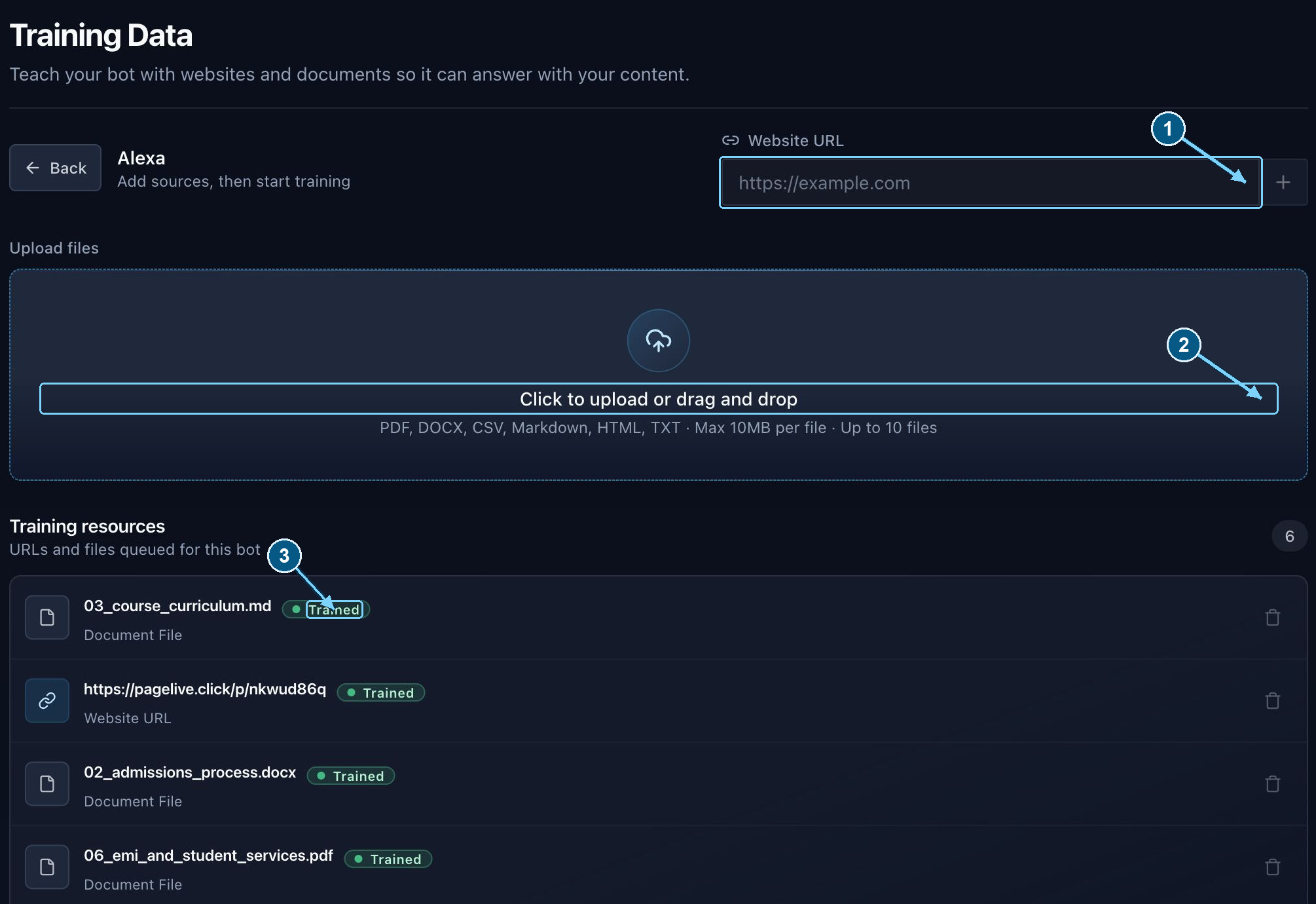
Upload, training, and answer readiness are separate checks. Read the status beside each source.
Enlarge- Add one public HTML page
- Choose supported files
- Check each source status
What source statuses mean
The completion percentage counts sources that finished, including the ones that failed. Read Success and Failed. An old error can stay in the history after you fix it, so trust the current status and any label that says the issue was resolved.
| Status | Your next action |
|---|---|
| Pending / uploading | Wait for upload verification. The source is not trained. If verification fails, upload a fresh copy. |
| Created / ready | The source is ready. Review the terms and choose Train Bot. Until you do, a student cannot hear what is in it. |
| Queued for training | The source is waiting for a worker. Avoid removing it or submitting the same batch again. |
| Training | Extraction and indexing are running. Keep the source unchanged until processing finishes. |
| Trained | Processing succeeded. Ask a few real questions. A green status means the text was indexed, not that every sentence is the one you would want a student to hear. |
| Training failed | Open the error information beside the source. Read the latest message, stage, action, and resolved status. Retry that source after fixing the cause. |
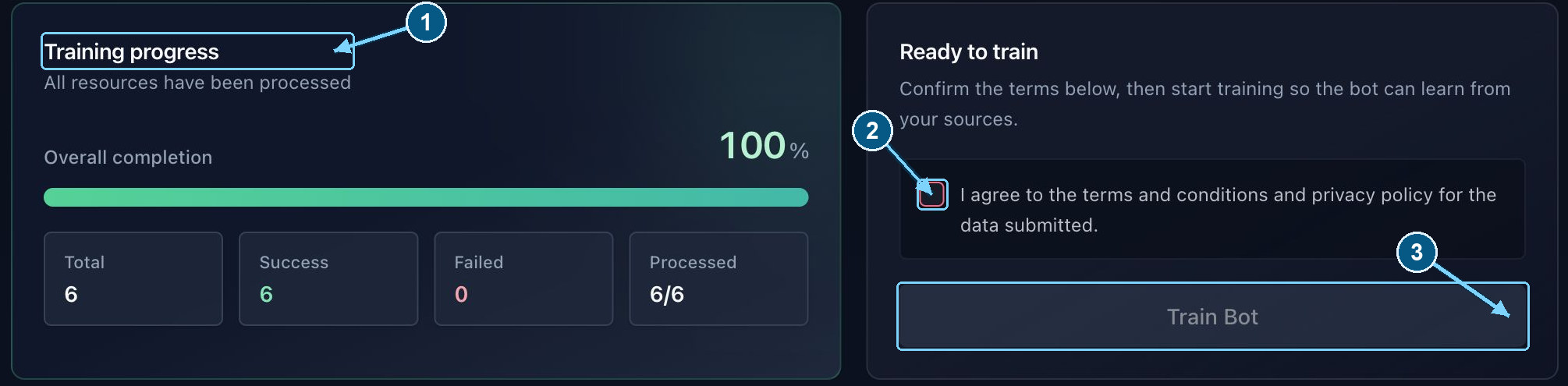
A processed batch can include failures. Review the result counts and every source status.
Enlarge- Review progress and failures
- Review submission terms
- Start after sources are ready
Replace stale information and remove sources
The same file contents are recognised for this bot. Renaming the file does not create new knowledge. A page you have already added is rejected. To refresh it, remove the old source and add the page again.
Keep your approved originals somewhere you control. Note what the source is for, remove the old version when it is safe, add the replacement, train it, and check the facts that changed. Two policies saying different things will leave a student with whichever passage comes back first.
You cannot remove a source while it is queued or training. Remove and retry also stay unavailable until you have read and accepted the submission terms. Removing knowledge changes future answers. It does not rewrite what was already said in an older chat.