Live support
Be there when a person is the right answer
Some questions need judgment, empathy, or a decision the assistant should not make. This is how a student reaches a counsellor, how you join without losing the thread, and what happens if nobody is free.
- Where to go
- Notifications or Users → Conversations → open thread
- Who can do this
- Organization members handling support
Prepare the team before offering live help
- Give the people who will answer an organization account with access to conversations. There is no separate “counsellor” login beyond the Counsellor role.
- Agree who watches handoff alerts during the hours you publish. Keep the dashboard open, and the network up. A schedule on the widget is a promise about people.
- Set the team name, email, hours, time zone, and a reply estimate you can keep. Write these in Interactions.
- Decide what happens when nobody can join. Do not promise instant human help just because the widget shows opening hours.
What happens during handoff
| State | What the team should do |
|---|---|
| Requested / searching | They have asked for a person. Members of the organization get a notification. Open the right thread promptly. Waiting here is the part a student feels. |
| Viewed | Reading the alert or the transcript can mark it read. It does not connect anyone. Join if you can help. |
| Accepted / connected | Someone used Join conversation. Wait until it says connected, read what was already explained, and answer as yourself. The student should not have to begin again. |
| Timed out / busy | Nobody accepted in time. The widget shows that people are unavailable. Follow up through the contact route you published. Silence after a request is the outcome to avoid. |
| Closed | The conversation ended. The composer is disabled and summaries may be generated in the background. |
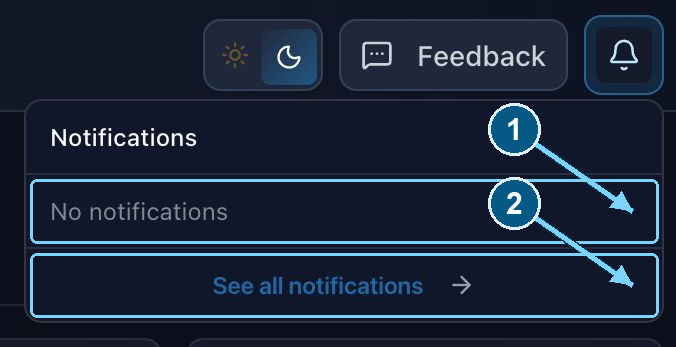
Open a handoff notification to review the conversation and connect a counsellor.
Enlarge- Recent alerts appear here
- Open the full list
The timeout is different from your reply estimate
The default wait for a handoff is 180 seconds. A deployment can change that number. Typical human reply time is only the estimate students see. Editing that field does not change how long the handoff waits.
Hours on the widget are not a roster, and they do not route the chat to a free person. If a handoff times out, read what they asked and whether they consented to contact, then use the follow-up you would want if it were your own enquiry.
Connection and ownership matter
Join a chat only if you can respond. If a colleague already has it open, look at the current state before you start a second conversation with the same student.
If you reload or lose the network, wait until you are connected again. A transcript you can still scroll is not a line that can send.
When they ask to end the human chat, you will see an end-chat request. Send any last reply, then use Close conversation. Reading or clearing the alert does not close it.
A useful handoff rehearsal
- 1
Use a test visitor journey
Ask an ordinary admissions question, then ask for a person. Test replies count toward usage.
- 2
Watch the dashboard
Confirm the alert reaches the workspace you expect and opens the right thread.
- 3
Join from the staff account
Check that the visitor sees a person is connected, and that messages go both ways.
- 4
Check the fallback
In a test you control, leave a request unanswered. Read the timeout message and confirm the support contact is a real route, not a dead end.
- 5
Finish the chat
Close it, check the ended state on both sides, and give the summary a moment to finish.